

About the client certificate migration
As part of the Tucows Registry CA 2026 migration, registrars can generate and manage new EPP client certificates through the Registrar Portal.
This article covers the Registrar Portal. If you manage your certificates in the Registrar Console, see Generating New EPP Client Certificates for the Tucows Registry CA 2026 Migration.
This is separate from updating the trust store used to validate the Tucows Registry EPP server. For the server certificate migration, see Preparing Your EPP Trust Store for the Tucows Registry CA 2026 Migration.
Both changes are required: your trust store authenticates the Tucows Registry EPP server, while your EPP client certificate authenticates your registrar connection to Tucows Registry.
Accessing EPP Certificates
To manage EPP client certificates:
- Sign in to the Registrar Portal.
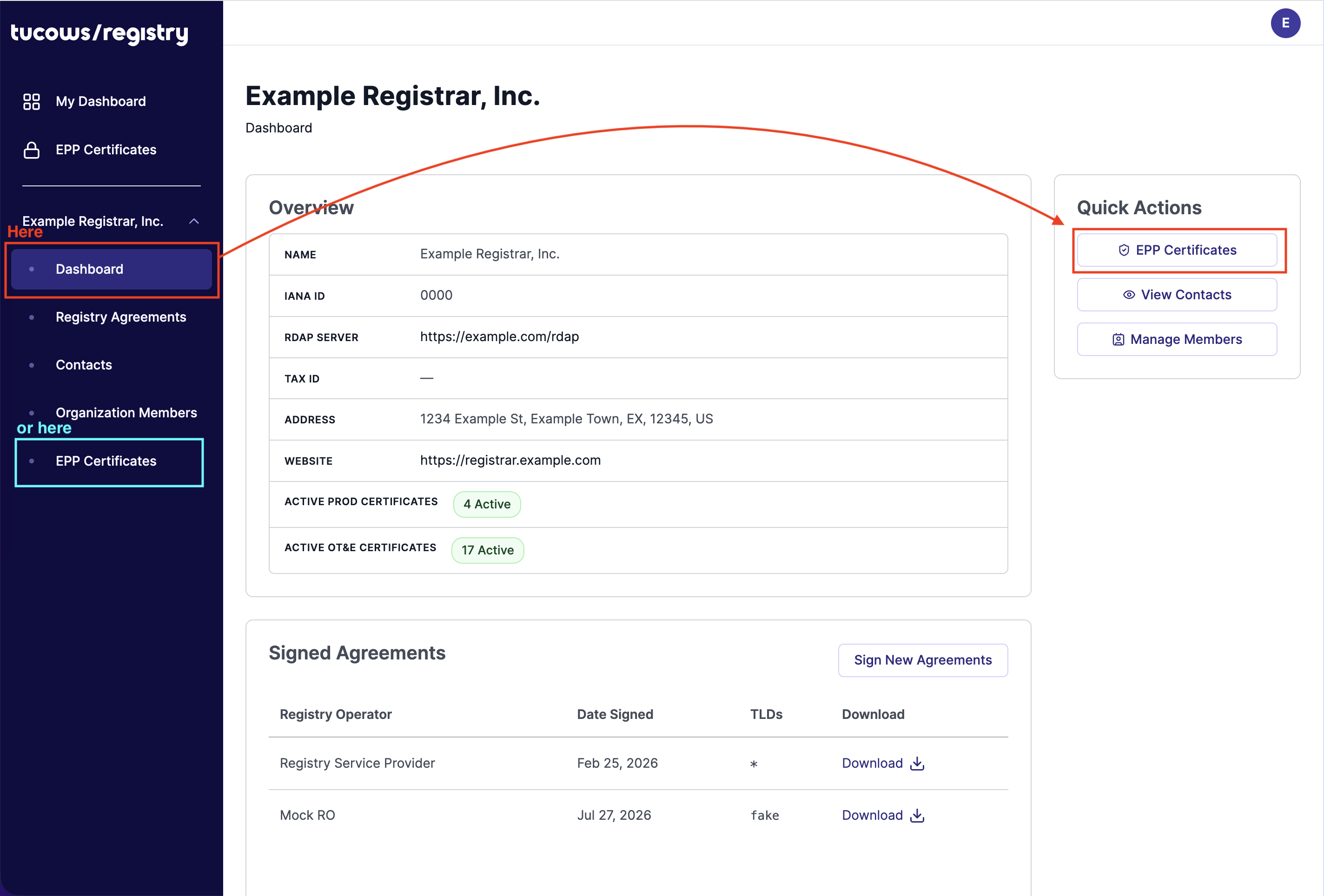
- Select your registrar organization to open its dashboard.
- Select EPP Certificates from the navigation menu (or from Quick Actions on the dashboard).
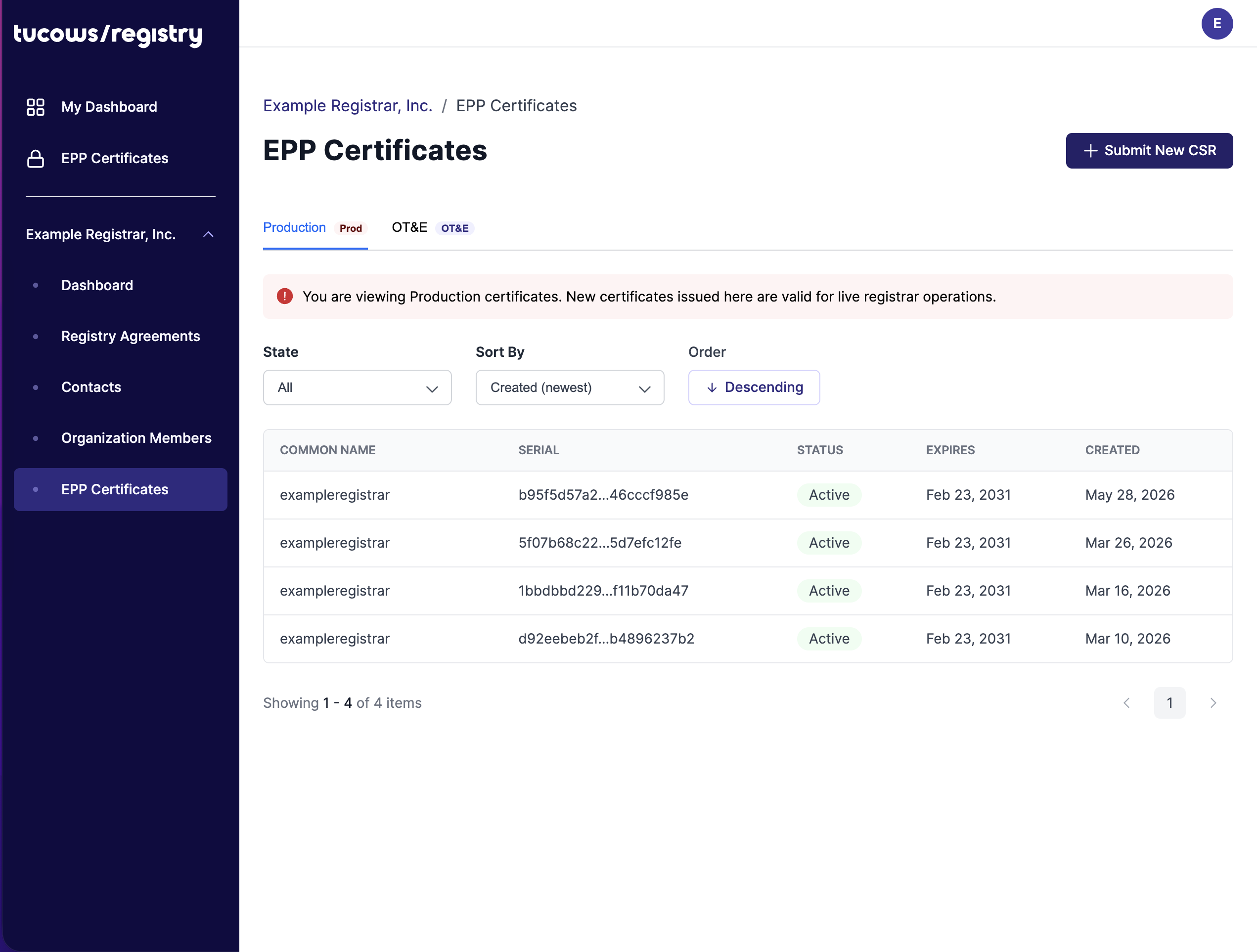
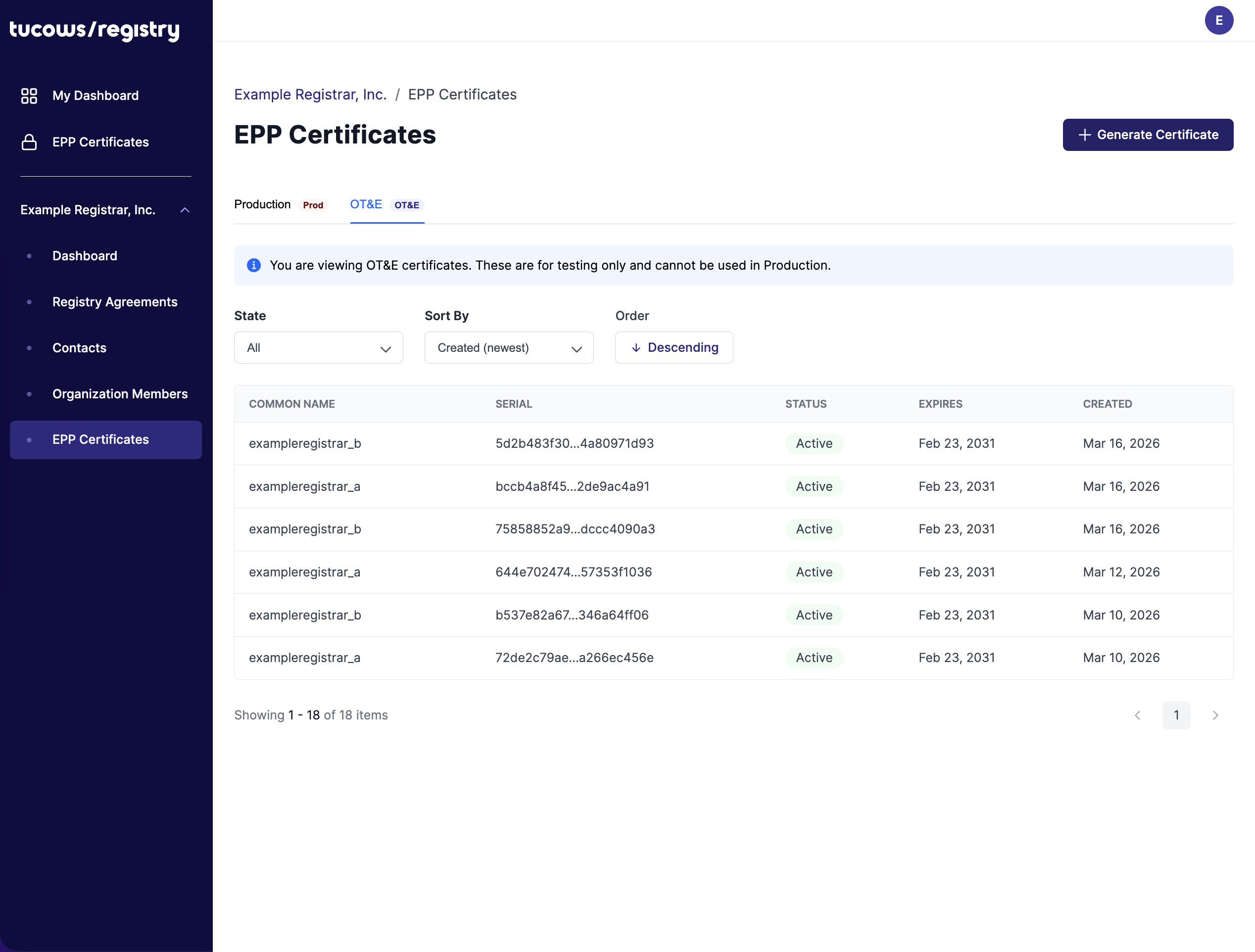
The EPP Certificates page has two tabs: Production and OT&E. The button in the top-right corner changes with the tab you are on: Submit New CSR on Production, Generate Certificate on OT&E.
How the Portal differs from the Registrar Console
The Registrar Console shows one registrar in one Tucows Registry instance at a time. The Registrar Portal shows everything for your registrar organization in one place:
- the Production tab lists the certificates for your Production registrar (for example, myregistrar)
- the OT&E tab lists the certificates for your two OT&E registrars (for example, myregistrar_a and myregistrar_b)
Every registrar has two OT&E registrar accounts, named after your registrar ID with _a and _b appended. That is why OT&E certificates come in pairs (see OT&E: issue a new client certificate).
You do not need to generate a separate client certificate for each Tucows Registry instance. The same certificate can be used across your EPP connections to other Tucows Registry instances for the same registrar/client ID.
Production and OT&E certificates are separate. Generate certificates for each environment you use.
Can't see EPP Certificates? Managing EPP certificates requires the certificate management permission on your registrar organization. Ask an account administrator for your registrar to grant it, or contact Tucows Registry Support.
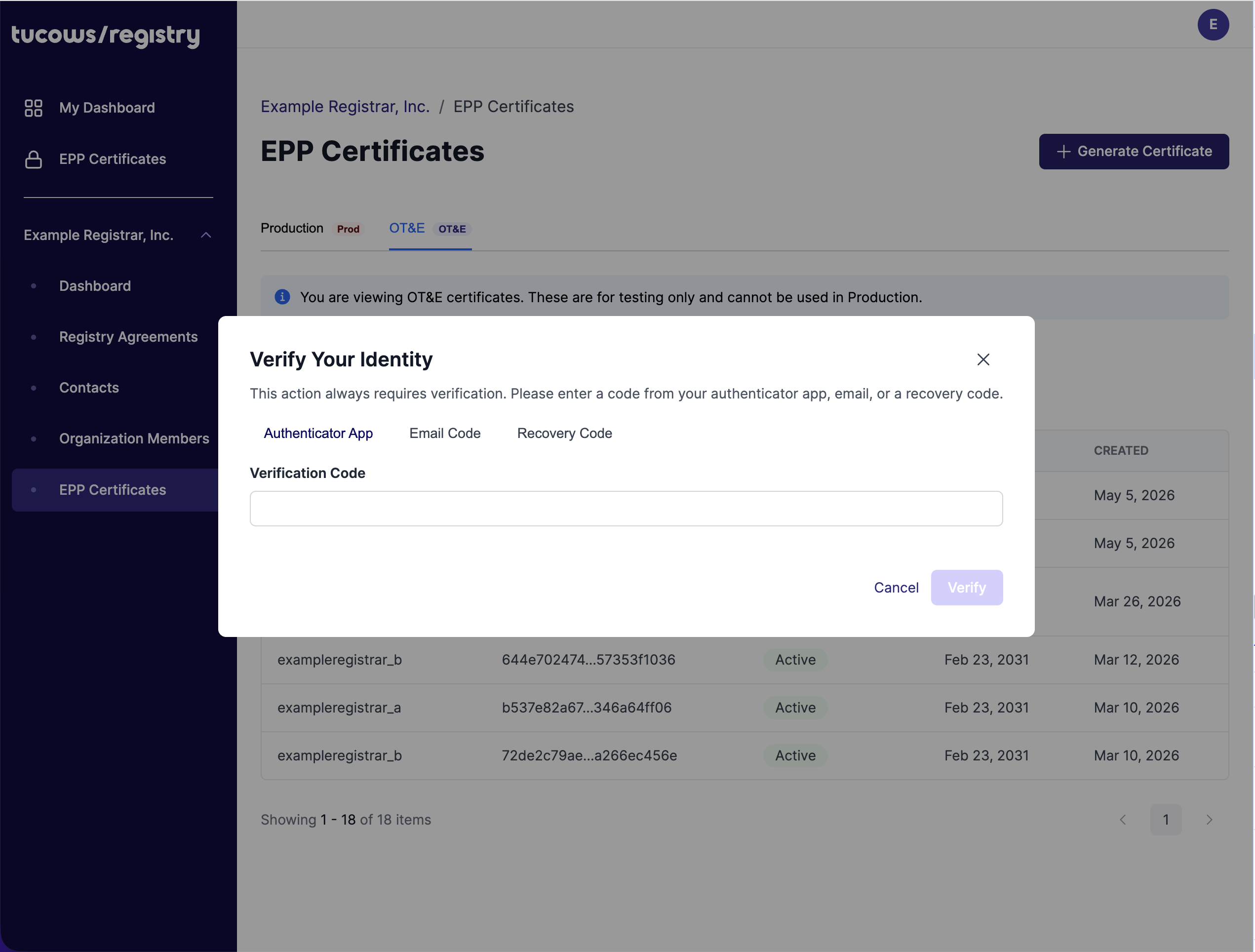
Two-factor authentication: if your account has two-factor authentication enabled, the Portal asks you to verify your identity (authenticator app, email code, or recovery code) before it issues or revokes a certificate.
Production: issue a new client certificate
For Production, you generate and retain your own private key. Only the Certificate Signing Request (CSR) is submitted to Tucows Registry.
Certificate requirements
- If using RSA, 4096 bits minimum.
- PKCS#10 PEM format.
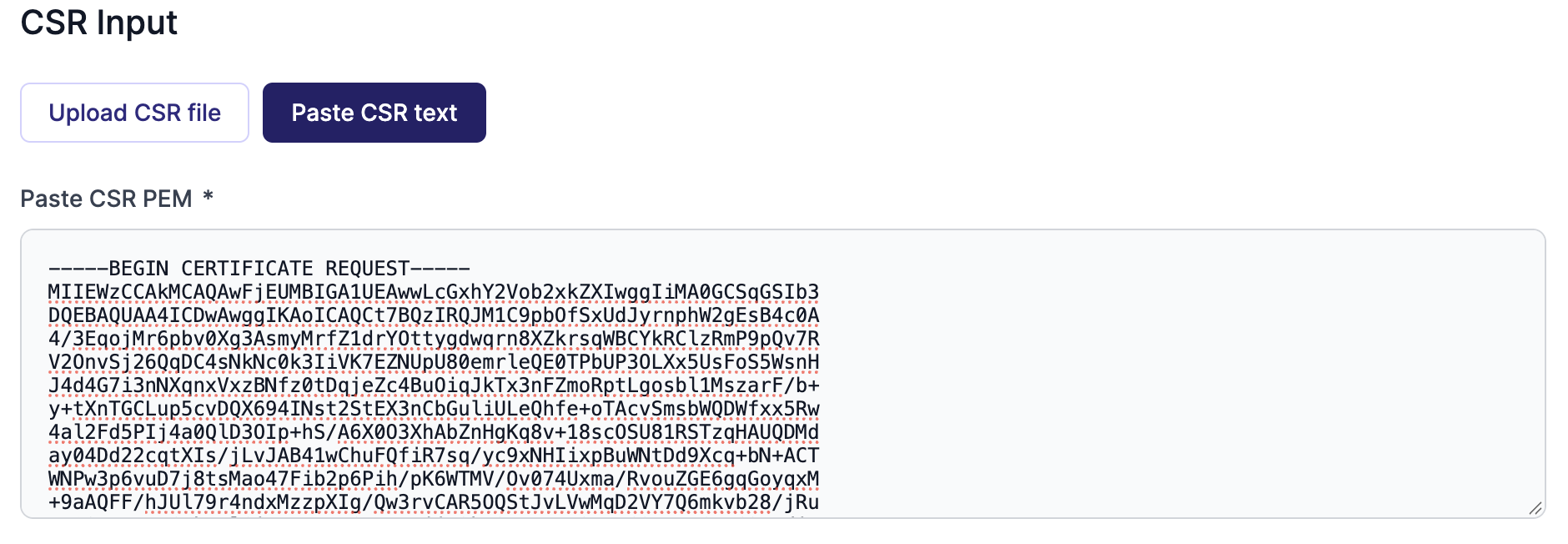
- The CSR must begin with -----BEGIN CERTIFICATE REQUEST-----
- SHA-256 signature or stronger.
- Subject DN values in the CSR are replaced by Tucows Registry when the certificate is issued, so a placeholder CN is acceptable.
Important: Your private key is your authentication credential. Never send it to Tucows Registry. Store it securely and restrict access to it. If the key is lost or compromised, revoke the certificate immediately (see Revoking a certificate).
First, generate your key and CSR using one of the Production CSR examples below.
Submit the CSR
- Open EPP Certificates and make sure the Production tab is selected.
- Click Submit New CSR.
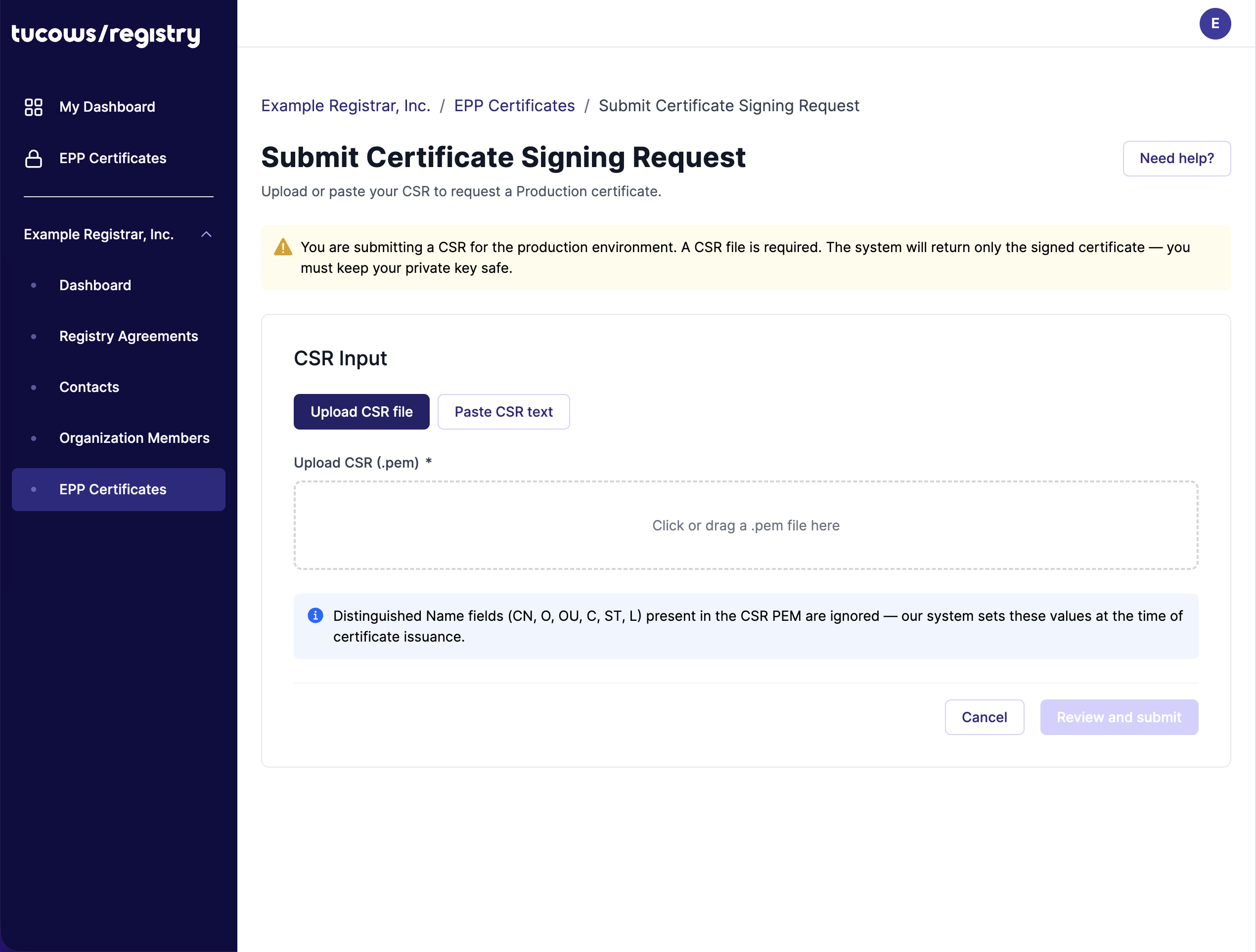
- Choose Upload CSR file to upload a .pem file, or choose Paste CSR text to paste the PEM-encoded CSR.
- Click Review and submit.
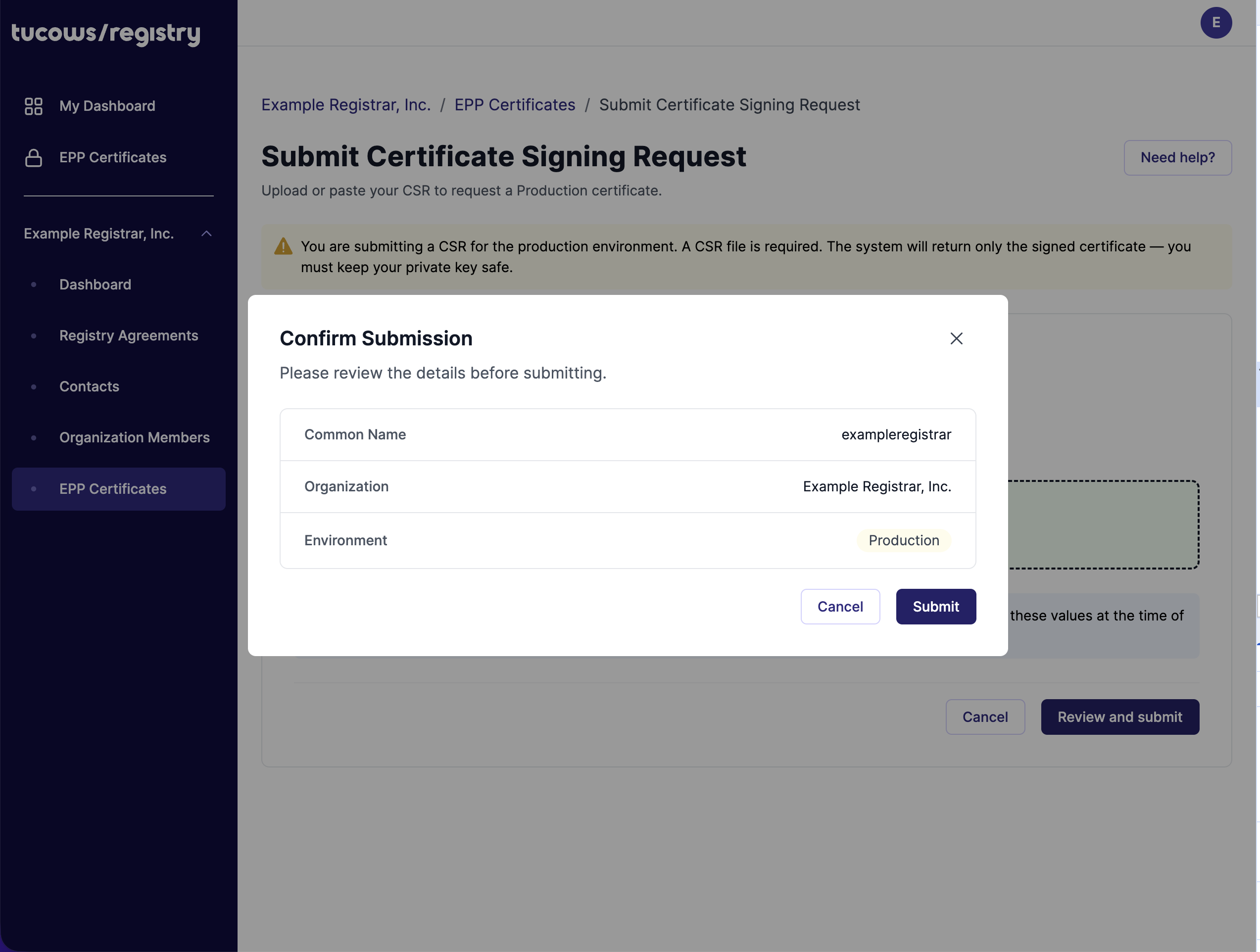
- In the Confirm Submission dialog, check the Common Name, Organization and Environment (Production), then click Submit.
- If prompted, complete the two-factor verification.
Tucows Registry assigns the Subject DN when the certificate is issued. The CN is set by the system to the one indicated on the page, regardless of the Subject DN in your CSR.
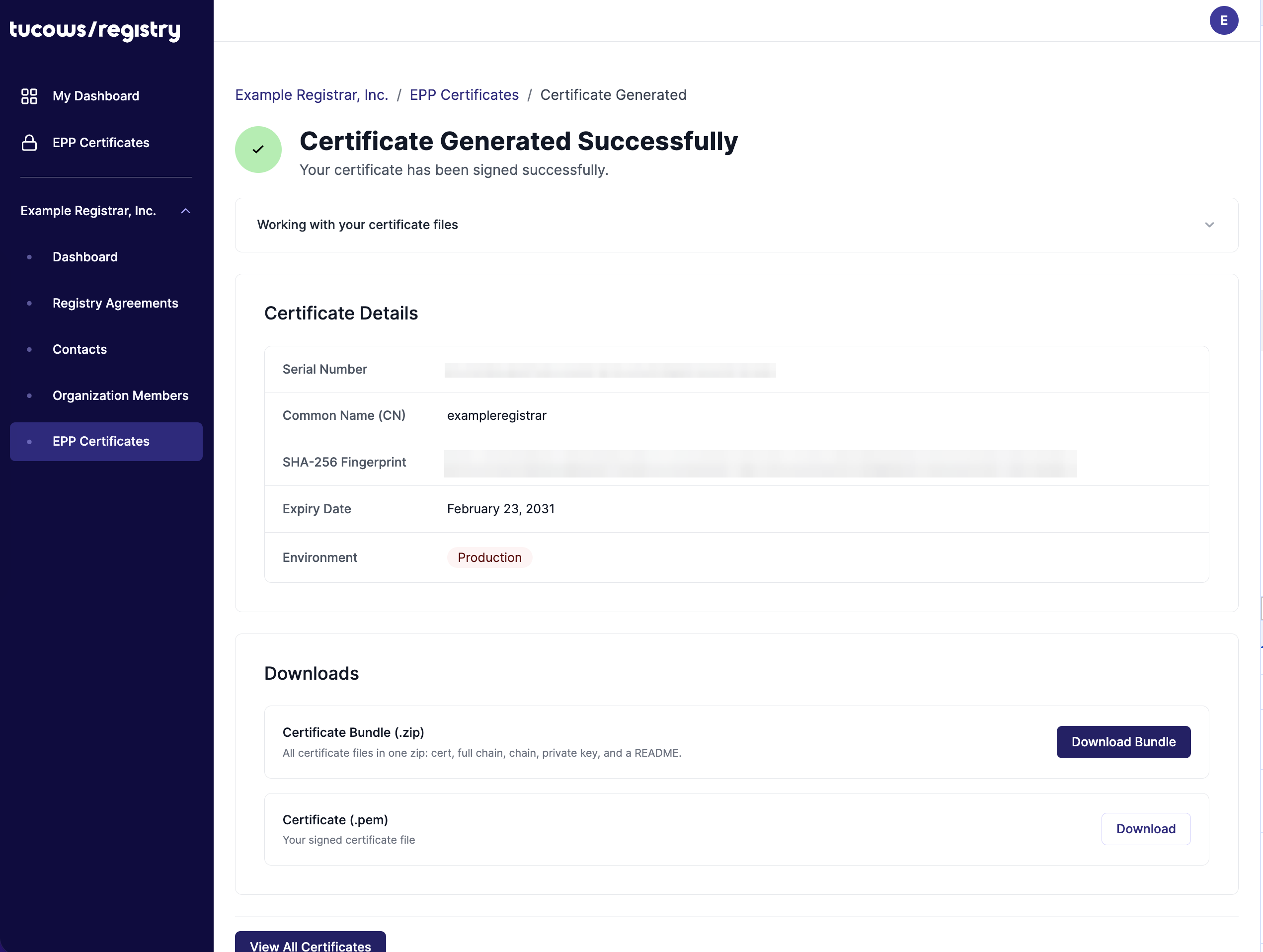
When the certificate is issued, the Portal opens the Certificate Generated Successfully page.
OT&E: issue a new client certificate
In OT&E, the Registrar Portal generates the key pair and certificate for you. No CSR is needed.
- Open EPP Certificates and select the OT&E tab.
- Click Generate Certificate.
- In the Generate OT&E Certificate dialog, click Generate Certificate.
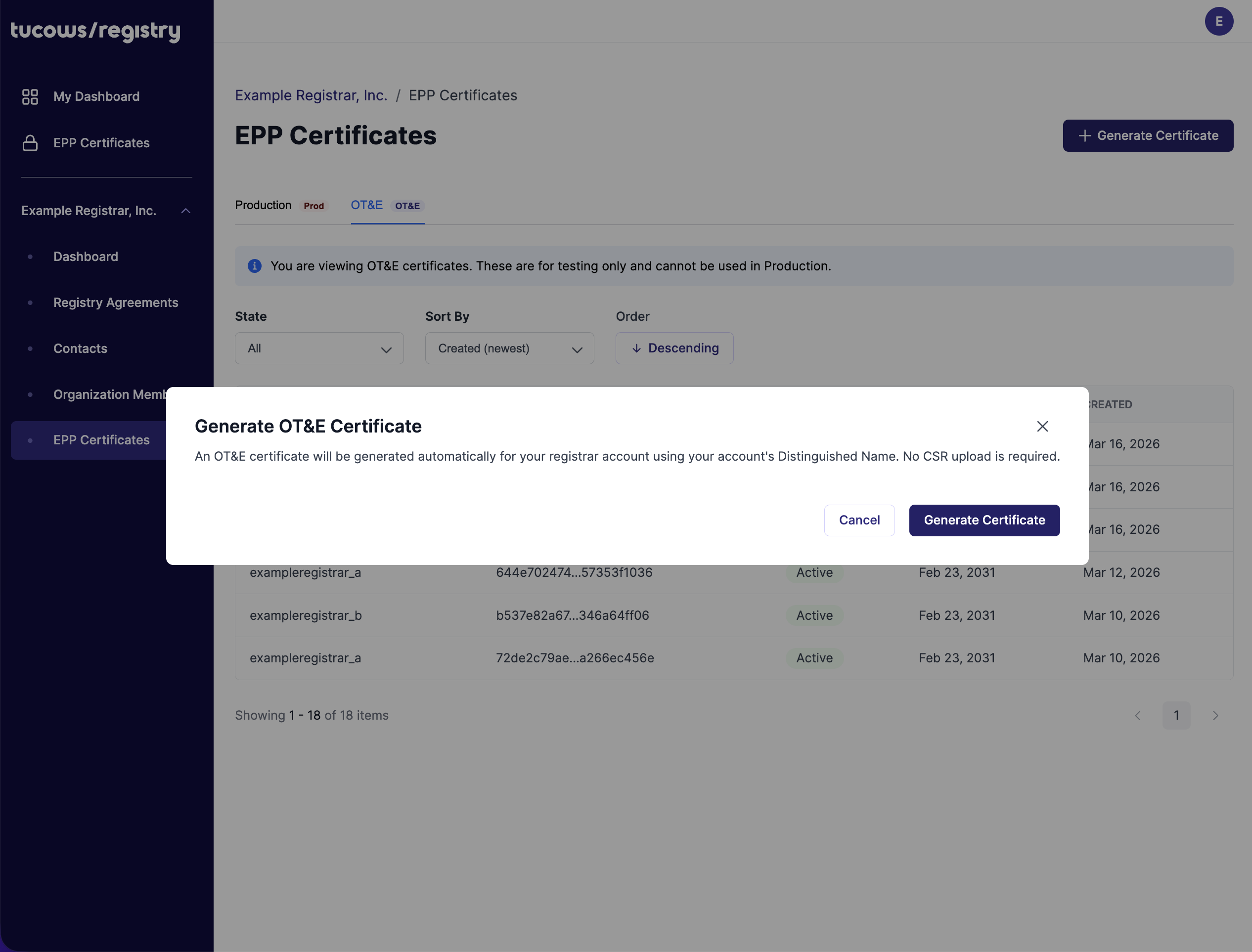
- If prompted, complete the two-factor verification.
Tucows Registry generates an RSA 4096-bit key pair for each certificate. The private keys are returned with the issued certificates. In OT&E they can also be downloaded again later from each certificate's detail page.
Because each registrar has two OT&E registrar accounts, the Portal issues one certificate for each: Certificate A is for <your client ID>_a and Certificate B is for <your client ID>_b. The success page shows one tab for each. Download the files from both tabs, and configure each OT&E EPP connection with the certificate and key that match its _a or _b account.
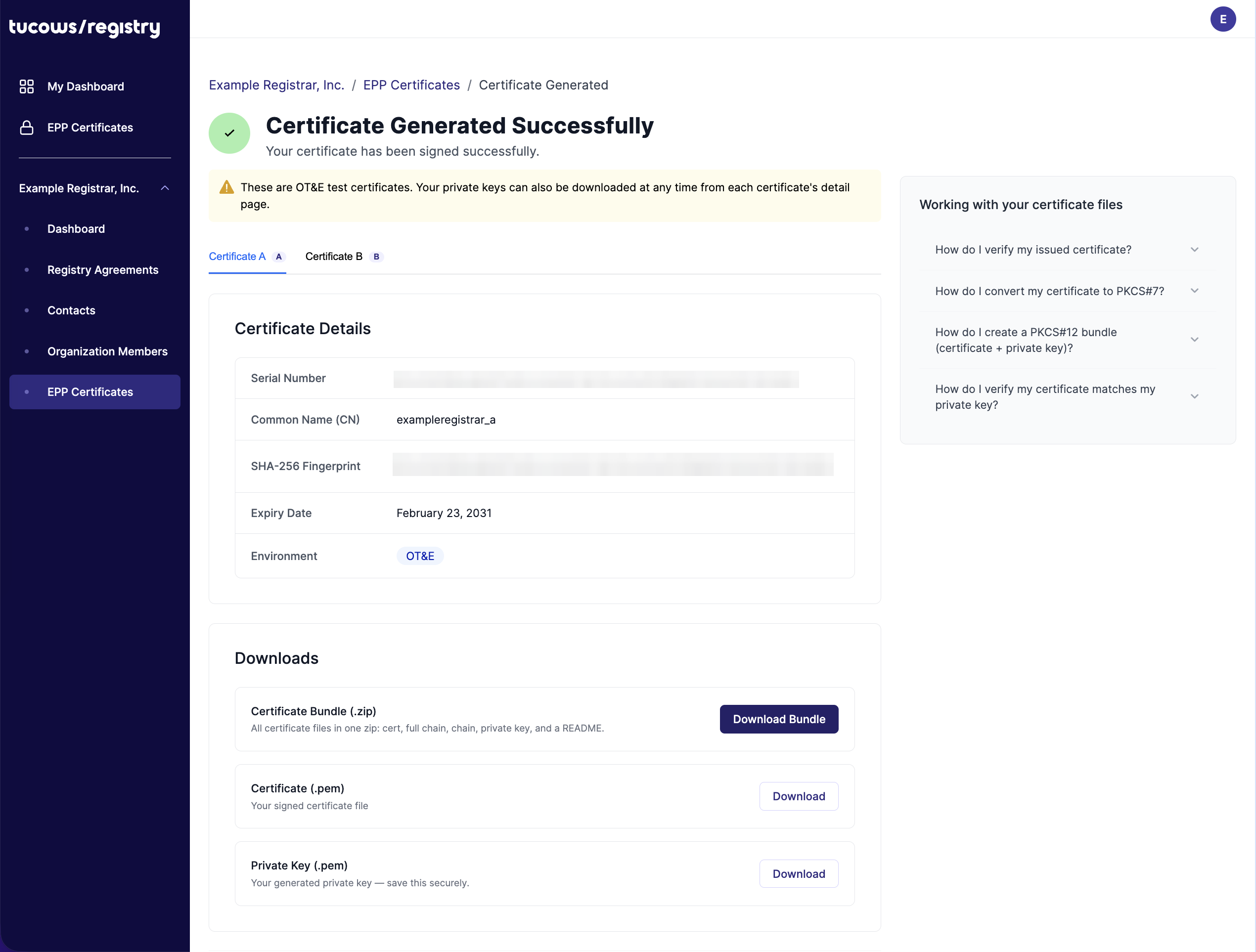
Note: OT&E is the only environment where Tucows Registry holds a copy of a generated private key. Production never receives your private key.
Downloading your certificate files
After issuance, the Certificate Generated Successfully page provides these downloads:
- Certificate Bundle (.zip) - everything in one file: the certificate, the full chain, the CA chain, the client CA, and a README. For OT&E certificates the bundle also includes the private key.
- Certificate (.pem) - the leaf client certificate.
- Private Key (.pem) - available for OT&E certificates only, because OT&E auto-generates the key pair.
Production private keys are never available for download from the Registrar Portal. Use the private key that you generated when creating the Production CSR.
You can download your files again later: open EPP Certificates, click the certificate in the list to open its detail page, and use the Downloads card.
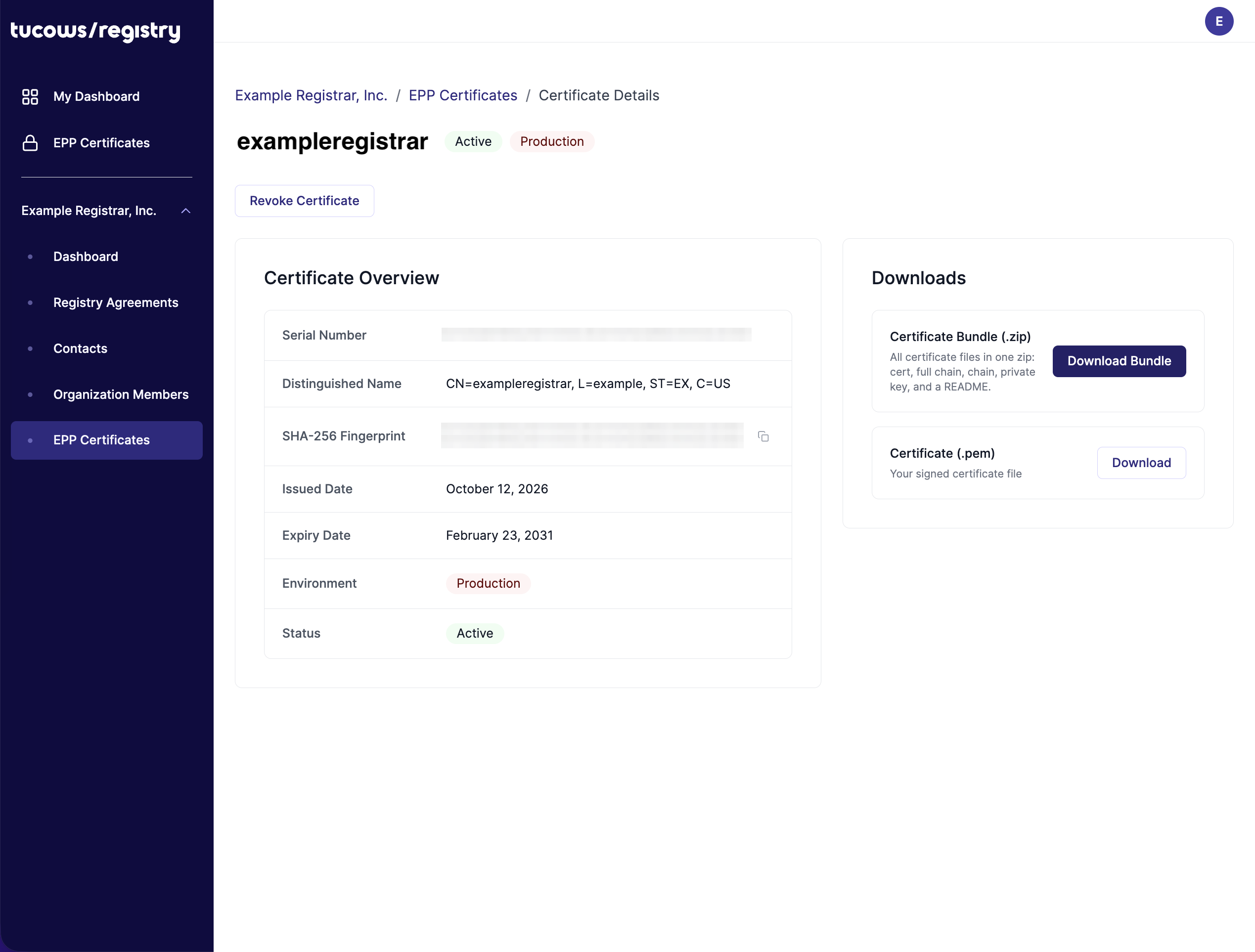
Downloads are not available for revoked certificates.
Examples
Production CSR examples
Linux / macOS
# Step 1 - Generate a 4096-bit RSA private key
openssl genrsa -out my-registrar.key 4096

# Step 2 - Generate the CSR
openssl req -new -sha256 \
  -key my-registrar.key \
  -out my-registrar.csr \
  -subj "/CN=placeholder"

# Step 3 - Verify (Public-Key should show 4096 bit)
openssl req -in my-registrar.csr -noout -text \
  | grep -E "Public-Key|Signature Algorithm"
Restrict key file permissions:
chmod 600 my-registrar.key
Windows - OpenSSL (Git Bash / PowerShell)
Install OpenSSL via Git for Windows, Chocolatey (choco install openssl), or a standalone installer, then use the same commands as Linux / macOS:
openssl genrsa -out my-registrar.key 4096

openssl req -new -sha256 \
  -key my-registrar.key \
  -out my-registrar.csr \
  -subj "/CN=placeholder"
Windows - certreq (no OpenSSL required)
Create a file named request.inf:
[Version]
Signature="$Windows NT$"

[NewRequest]
Subject="CN=placeholder, O=Your Org, C=US"
KeyLength=4096
KeySpec=1
Exportable=TRUE
RequestType=PKCS10
HashAlgorithm=SHA256
ProviderName="Microsoft RSA SChannel Cryptographic Provider"
ProviderType=12
Then run in Command Prompt as Administrator:
certreq -new request.inf my-registrar.csr
The private key associated with the CSR is stored in the Windows Certificate Store. After Tucows Registry issues the certificate, install the issued certificate so that Windows associates it with the existing private key. You can then export the certificate and private key together as a PKCS#12 (.pfx) file using Certificate Manager.
Troubleshooting common CSR errors
- RSA key size below 4096 bits - Generate a new key: openssl genrsa -out my-registrar.key 4096
- Invalid CSR signature - The CSR may be truncated or corrupted. Regenerate it from the same private key.
- CSR does not begin with -----BEGIN CERTIFICATE REQUEST----- - Check that you uploaded the CSR rather than the private-key file.
- Verify step shows (2048 bit) - Generate a fresh 4096-bit key and CSR.
Working with your issued certificate
Verify the issued certificate
openssl x509 -in my-registrar.pem -noout -text \
  | grep -E "Subject:|Issuer:|Not After|Public-Key"
Expected output should show:
- Issuer contains Tucows Registry Production Root CA 2026, or Tucows Registry OT&E Root CA 2026 in OT&E.
- Subject CN matches your Tucows Registry-assigned client ID. For OT&E, it is your client ID with _a or _b appended.
- Public-Key shows (4096 bit) for an RSA certificate generated using the examples above.
Convert the certificate to PKCS#7
Some EPP clients and Java environments require PKCS#7 format (.p7b). PKCS#7 contains the certificate only; it does not contain the private key.
openssl crl2pkcs7 -nocrl \
  -certfile my-registrar.pem \
  -out my-registrar.p7b
Verify the result:
openssl pkcs7 -in my-registrar.p7b \
  -noout -print_certs -text \
  | grep -E "Subject:|Issuer:|Public-Key"
Create a PKCS#12 bundle (certificate and private key)
PKCS#12 (.p12 / .pfx) bundles your certificate and private key into a single file. It is required by some Java keystores and Windows tools.
openssl pkcs12 -export \
  -inkey my-registrar.key \
  -in    my-registrar.pem \
  -out   my-registrar.p12
OpenSSL prompts you to set a passphrase. Protect the resulting file with the same care as your private key.
Verify that the certificate matches the private key
Both commands should produce identical MD5 hashes if the certificate and key are a matched pair:
openssl x509 -in my-registrar.pem -noout -modulus | openssl md5
openssl rsa  -in my-registrar.key -noout -modulus | openssl md5
Revoking a certificate
You can revoke an EPP client certificate directly from the Registrar Portal if your account has permission to manage EPP certificates.
- Open EPP Certificates and select the Production or OT&E tab.
- Click the certificate you want to revoke to open its detail page.
- Click Revoke Certificate.
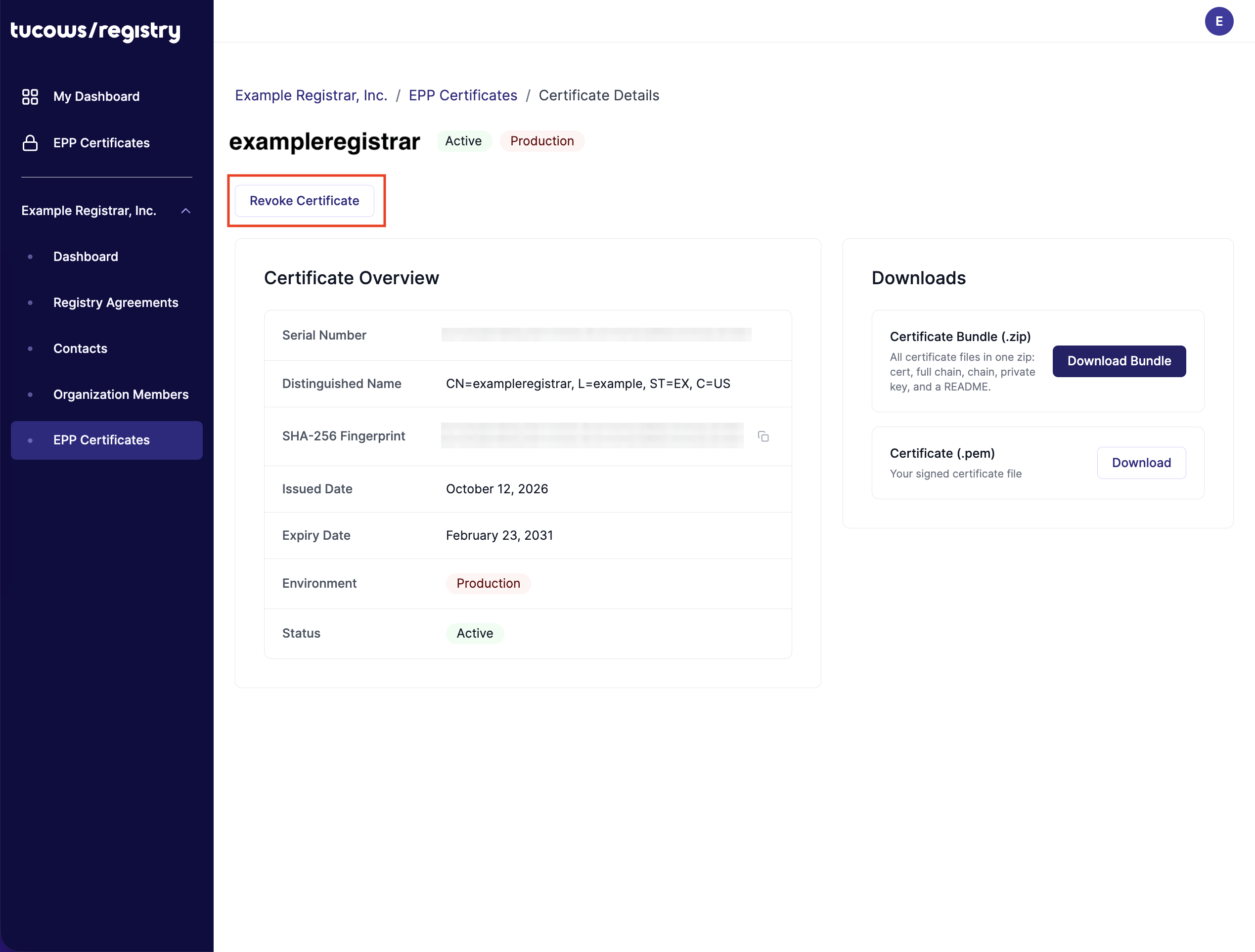
- In the Revoke Certificate dialog, select a Revocation Reason(Key Compromise, Superseded, Privilege Withdrawn, or Unspecified) and add optional details (up to 500 characters).
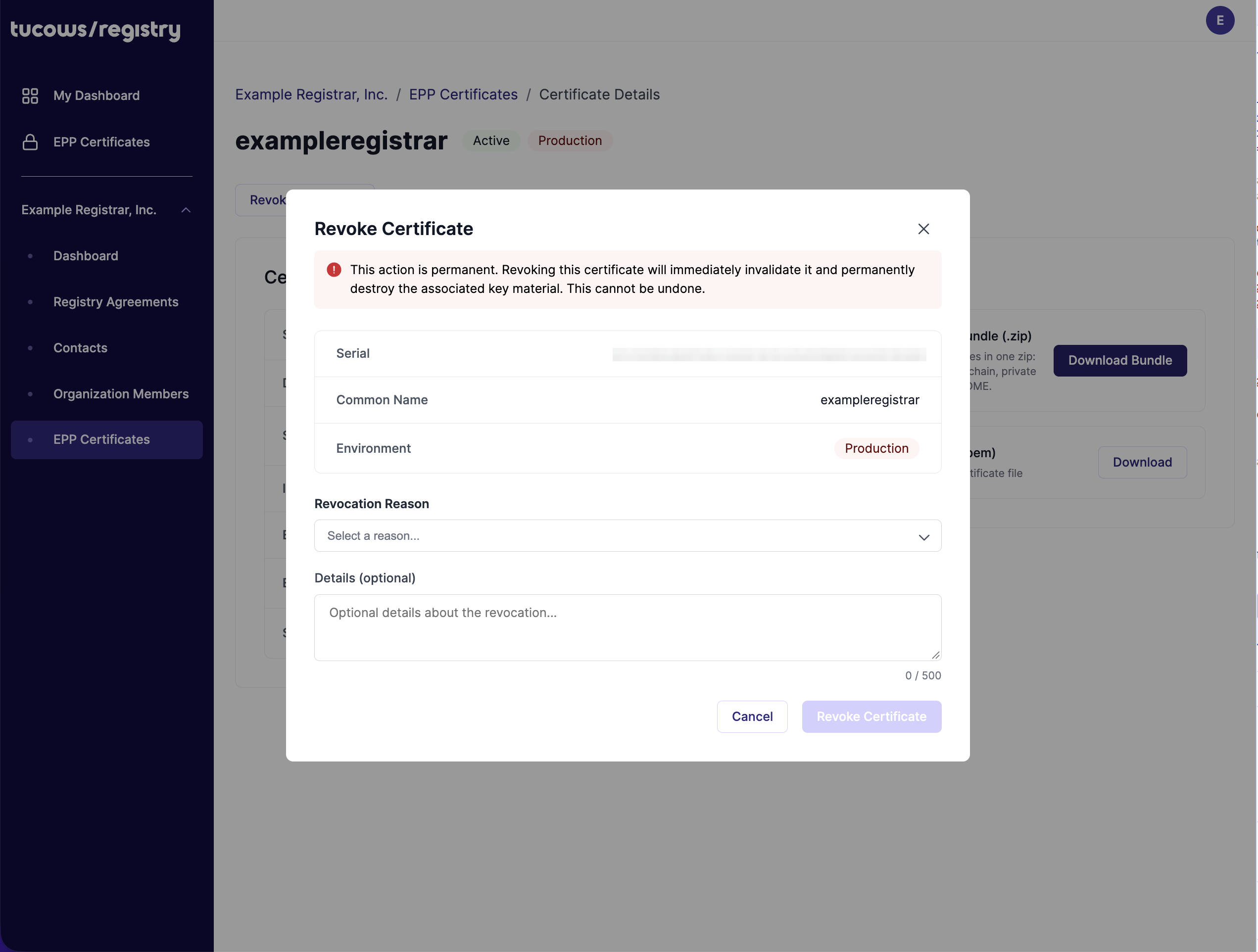
- Click Revoke Certificate to confirm, and complete the two-factor verification if prompted.
The certificate's status changes to Revoked.
Important: Revocation is permanent. Revoke a certificate if its private key is lost or compromised, or when the certificate should no longer be used. The Revoke Certificate button is not shown for certificates that are already revoked or expired.
If you cannot see or revoke the certificate in the Registrar Portal, contact Tucows Registry Support.
Next steps
- Issue and download a new client certificate for every Tucows Registry environment you use.
- Configure your EPP client with the new certificate and its matching private key.
- Test that you can establish and authenticate an EPP session using the new client certificate.
- If you use both OT&E and Production, complete the process separately in each environment.
- Keep your existing working client certificate available until you have confirmed the new certificate works and Tucows Registry has communicated that legacy client certificates can be retired.
Support
Questions or problems issuing a certificate? Contact Tucows Registry Support and reference the Tucows Registry CA 2026 EPP client certificate migration.